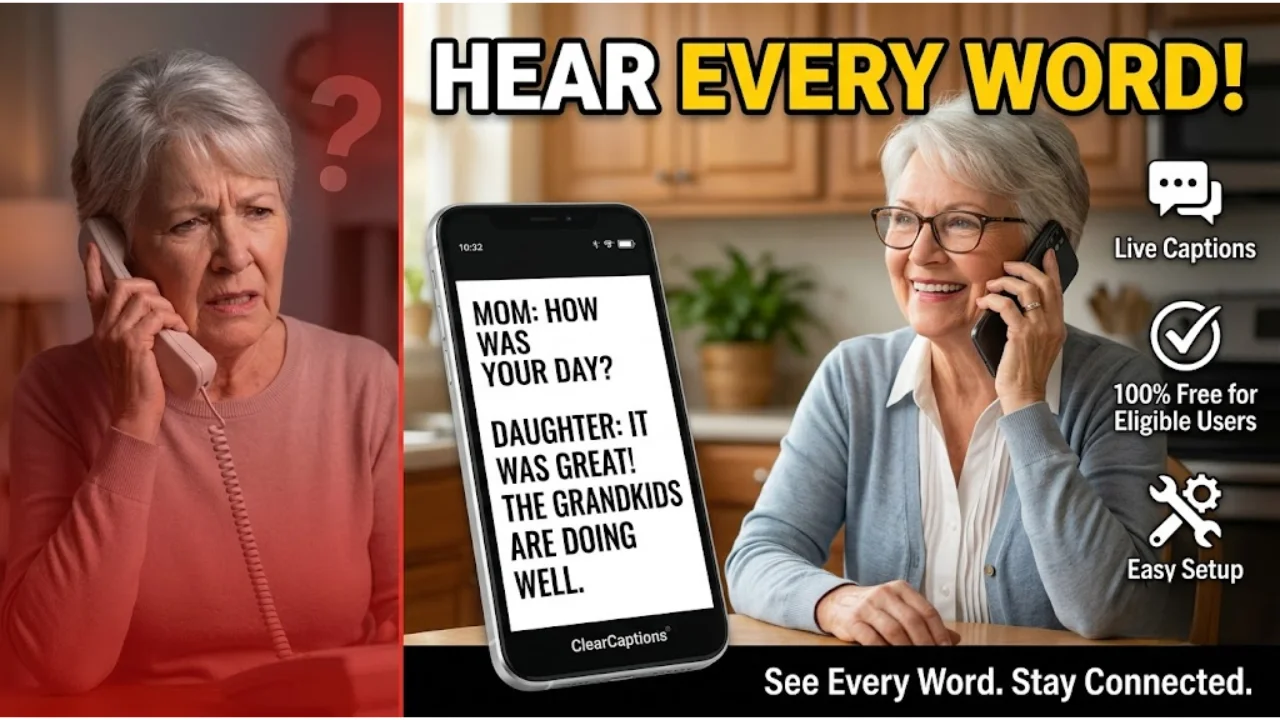
Missing words on a phone call is more than frustrating. For people with hearing loss, it can feel lonely — even dangerous. The Clear Captions Phone fixes that. It shows you every word your caller says, live, on the screen.
This guide covers everything — tips, hidden features, troubleshooting fixes, and honest answers. All in one place.
What Is the ClearCaptions Phone & How Does It Actually Work?
The ClearCaptions Phone is a captioned telephone built for people with hearing loss. You talk and listen normally. The phone shows a live, readable transcript of what the other person says — word by word, in real time.
Must visit: 250+ Best Boat Captions for Instagram: Funny, Cute, Sailing & Lake Day Quotes
How does real-time captioning work?
It uses IP Captioned Telephone Service (IP CTS). This is a combination of Automatic Speech Recognition (ASR) software and a live communications assistant. The incoming audio travels securely to ClearCaptions’ system, gets converted into text, and appears on your screen within seconds.
The FCC officially recognizes IP CTS as a Telecommunications Relay Service (TRS) — meaning it meets federal standards for reliability and accuracy.
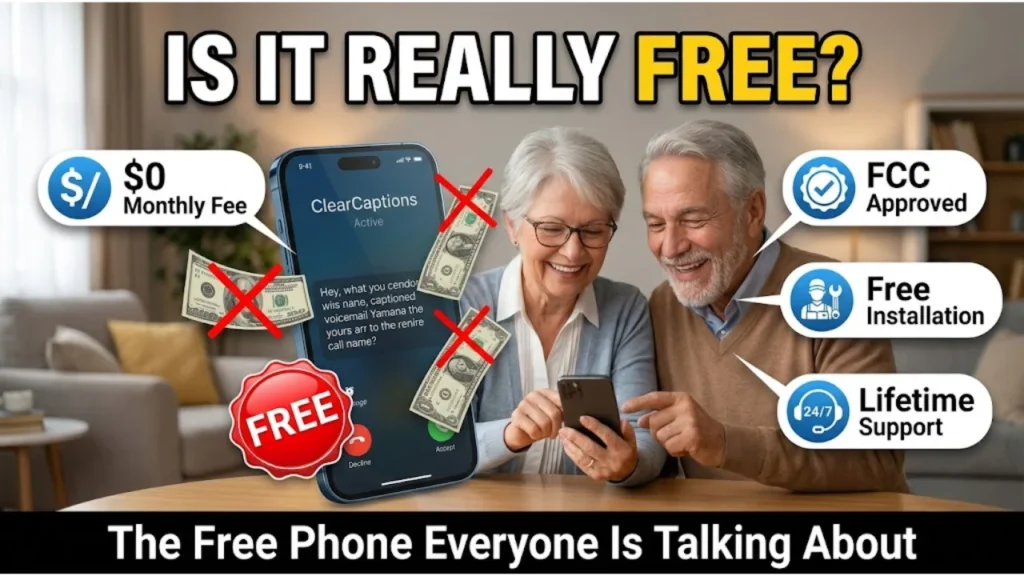
Why is the ClearCaptions Phone free?
Under Title IV of the Americans with Disabilities Act (ADA), all U.S. telephone and internet providers must contribute to the TRS Fund — a federally managed program overseen by the FCC. That fund pays ClearCaptions directly for every captioned minute. So the cost never reaches you. No contracts. No monthly fees. No hidden charges.
Who qualifies for the ClearCaptions captioned telephone?
Any U.S. resident with a medically recognized hearing disability that makes using the phone difficult can qualify. You self-certify your condition during registration. In most cases, no audiologist letter is required upfront.
Eligible users include:
- Adults with sensorineural hearing loss
- Seniors experiencing age-related hearing decline
- People with auditory processing disorders
- Stroke or aphasia recovery patients with speech perception difficulties
What happens after you sign up?
ClearCaptions sends a professional setup specialist directly to your home — at zero cost. They configure the phone for your specific needs and walk you through every step. This is called white-glove service, and it includes lifetime support. That’s a major difference from most other captioned phone providers who ship the device and leave you on your own.
250+ ClearCaptions Phone Tips & Hidden Features Most Users Never Use
Most users only scratch the surface of what the ClearCaptions captioned telephone can do. These tips cover call quality, customization, voicemail, the mobile app, and emergency safety — areas that most online guides completely skip. Clear Captions Phone.
Must visit: 250+ Hot Wife Captions for Instagram — Confident, Flirty, Beautiful & Loving Quotes
Call Quality Tips
What internet speed do you need for the best captioning accuracy?
A stable broadband connection of at least 10 Mbps download speed gives the smoothest captioning experience. The IP CTS system depends on a consistent internet signal. Weak Wi-Fi or congested networks cause caption lag or dropped words.
- Place your router within 15–20 feet of the ClearCaptions Phone if using Wi-Fi.
- A wired Ethernet connection is always more reliable than wireless for VoIP-based captioning devices.
- Restart your modem and router once a week to keep the connection clean.
- Avoid running large downloads or video streams during important captioned calls.
- If captions lag consistently, contact your internet provider to check for bandwidth throttling.
When does the live operator take over from ASR?
The ASR software handles most calls automatically. But when audio quality drops — heavy accents, background noise, fast speech — a trained communications assistant steps in. This hybrid system is what makes ClearCaptions’ accuracy stronger than pure AI captioning alone.
- Calls in quiet environments produce noticeably sharper captions.
- Landline-to-landline calls typically produce cleaner audio than mobile-to-mobile.
- Speakerphone on the caller’s end often causes the ASR to struggle — ask callers to hold the phone normally.
Customization Tips
Can you change how captions look on the screen?
Yes. The ClearCaptions Phone lets you adjust caption font size, font style, and color contrast directly on the device. This dual-accessibility design matters enormously for older adults managing both hearing loss and low vision at the same time.
- Increase font size until you can read comfortably without leaning in.
- Use high-contrast settings — white text on a dark background reduces eye strain for extended calls.
- Adjust caption display speed if text appears faster than you can comfortably read.
- Set up speed dial for your most-called numbers — family, doctors, pharmacy — to reduce touchscreen navigation time.
- Customize ring volume and choose a visual flash alert if you don’t always hear the phone ring.
How do you pair a hearing aid with the ClearCaptions Phone?
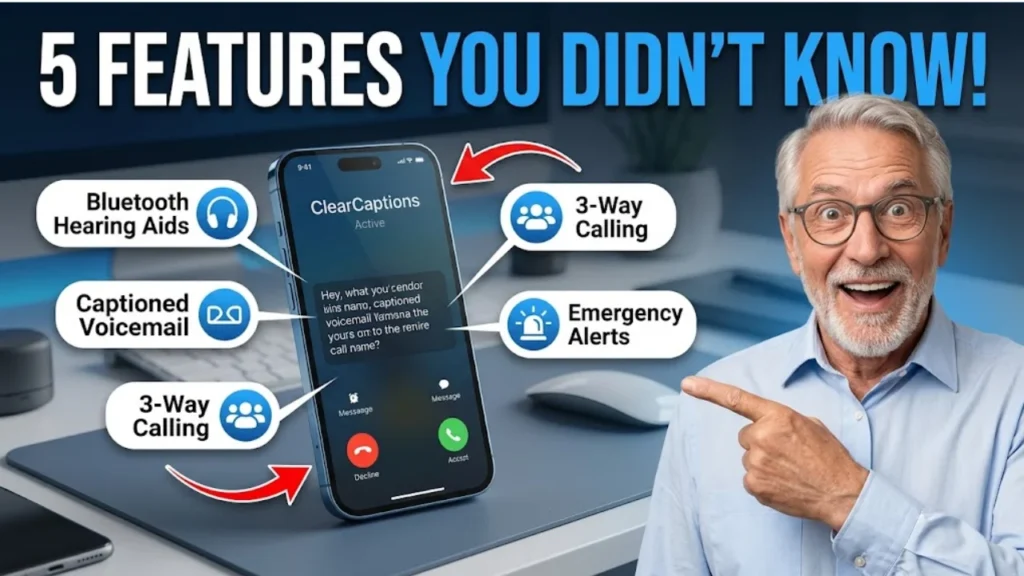
The device supports Bluetooth connectivity. This means you can pair compatible hearing aids or headsets directly to the phone for amplified audio alongside the live captions.
Step-by-step Bluetooth pairing:
- Go to Settings on your ClearCaptions Phone.
- Select Bluetooth and toggle it on.
- Put your hearing aid into pairing mode (check your hearing aid’s manual).
- Select your hearing aid from the list of available devices.
- Confirm the connection — you’ll see a confirmation message on screen.
Voicemail & Call Management Tips
How do you use captioned voicemail?
The ClearCaptions Phone includes captioned voicemail — you read messages instead of listening to them. This is one of the most underused features on the device.
- Access voicemail directly from the home screen.
- Captions of each voicemail message appear automatically.
- Save important messages before deleting — the caption text stays accessible in your call history.
- Voicemail box capacity is limited. Delete old messages regularly so callers can still leave new ones.
How does 3-way calling work with captions?
The device supports 3-way calling — you can include a family member, caregiver, or interpreter in any call. Captions continue to appear for all speakers during the call.
- Use 3-way calling for medical appointments so a family member can help follow the conversation.
- Captions appear for whichever person is actively speaking.
- All three participants are shown in the call interface.
Other call management features worth knowing:
- Call history stores saved caption transcripts you can review after the call ends.
- Call waiting alerts you to incoming calls while you’re already on a captioned call.
- Hold, mute, and call transfer all function normally — captions stay active throughout.
ClearCaptions Mobile App Tips
What is the ClearCaptions Mobile App?
The ClearCaptions Mobile App is a free iOS and Android application that brings the same real-time call captioning to your smartphone or tablet. It’s FCC-certified, funded through the TRS Fund, and costs nothing to eligible users.
The app gives you:
- A personal ClearCaptions Voice phone number for captioned calls
- Captions for both incoming and outgoing calls
- Free captioned voicemail
- 3-way calling and call waiting
- Direct access to your iPhone contact list
- Caption font and color adjustment
- Bluetooth support
- E911 integration
How do you set up the ClearCaptions Mobile App correctly?
- Download the app from the Apple App Store or Google Play Store.
- Open the app and tap Sign Up.
- Complete the self-certification form confirming your hearing loss.
- Choose a ClearCaptions Telephone Number — they’ll assign one with an area code closest to your location.
- Register your Registered 911 Location immediately after setup. This is critical for emergency routing.
- Enable Bluetooth in your phone settings if you use a hearing aid.
- Test the app with a captioned call before your first real use.
ClearCaptions Mobile App vs. Home Caption Phone — which is right for you?
| Feature | Home Caption Phone | Mobile App |
|---|---|---|
| Setup | White-glove in-home | Self-install |
| Best for | Seniors at home | Active users, travelers |
| Screen size | Large dedicated display | Your smartphone |
| Cost | Free | Free |
| Captioned voicemail | Yes | Yes |
| Bluetooth | Yes | Yes |
| FEMA EAS alerts | Yes (VoIP models) | Yes |
If you stay home most of the time, the dedicated ClearCaptions Phone with its large touchscreen is the better fit. If you’re active and travel frequently, the mobile app gives you captioned calls wherever you have a data connection inside the USA.
Safety & Emergency Tips (What Almost No Guide Covers)
How does the FEMA Emergency Alert System work on the ClearCaptions Phone?
This is one of the most important — and most overlooked — features of the ClearCaptions captioned telephone. VoIP-enabled models receive FEMA Emergency Alert System (EAS) broadcasts directly. This means critical weather warnings, national emergencies, and public safety alerts reach you through your caption phone automatically. For seniors living alone, this feature can be life-saving.
- EAS alerts are transmitted at no additional cost.
- Your Registered 911 Location determines which geographic alerts you receive.
- Alerts may interrupt an active call briefly and repeat twice.
- FEMA and ClearCaptions also conduct EAS tests periodically — this is normal.
Why is registering your 911 location so important?
The ClearCaptions Phone supports E911 emergency dialing. But it only routes correctly if your Registered 911 Location is accurate and up to date. If you move — even temporarily — you must update this address.
- Update your Registered 911 Location by calling 1-866-868-8695.
- You can also update it directly through the ClearCaptions Mobile App or your phone’s settings.
- If you haven’t updated your location, your 911 call may route to the wrong emergency center.
- Always maintain a backup emergency contact method — a traditional phone or TTY — in case of broadband outages.
What happens if the internet goes out?
The ClearCaptions Phone runs on your home internet connection. If your broadband goes down:
- Captioning will not function.
- 911 emergency dialing through the device will also be unavailable.
- Keep a backup mobile device or traditional landline for emergencies.
- Contact your internet provider immediately during extended outages.
ClearCaptions Phone Troubleshooting — Fix Every Common Problem Fast
This is the section most online guides skip entirely. These are the real fixes for the most common ClearCaptions Phone problems — based on actual user complaints and technical realities of IP CTS devices.
Caption Problems
Captions not appearing on screen?
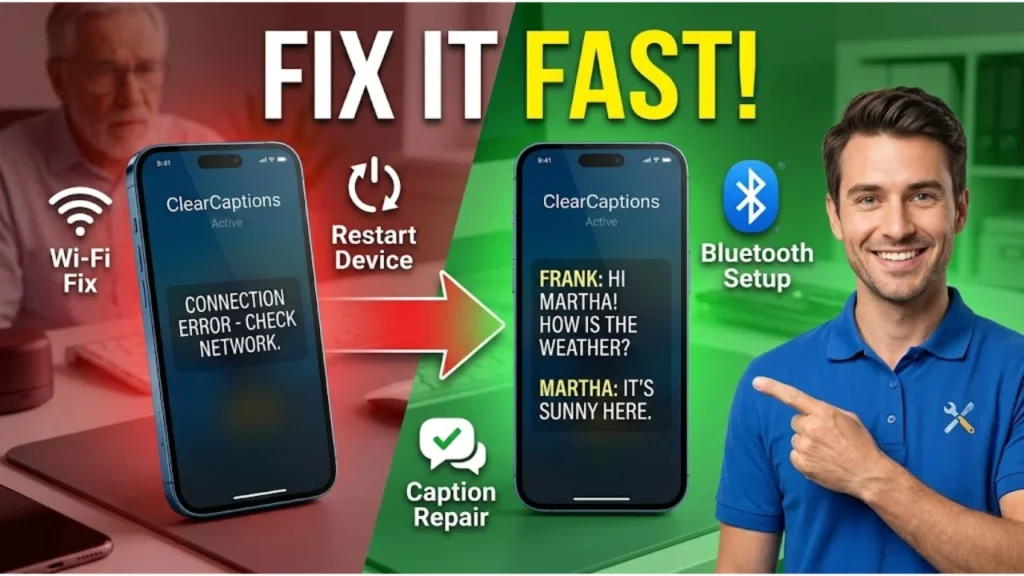
This is the most common complaint. Here’s the fix checklist:
- Check your internet connection — open a browser and confirm you have internet access.
- Restart the ClearCaptions Phone by unplugging it for 30 seconds and plugging it back in.
- Confirm the phone is properly connected to your router — check the Ethernet cable or Wi-Fi signal.
- Check ClearCaptions’ service status page for any known outages.
- If the problem continues, call ClearCaptions Customer Support at 1-866-868-8695.
Captions are delayed or lagging?
Caption lag is almost always an internet speed or congestion issue.
- Run a speed test at fast.com — you need at least 5–10 Mbps for stable captioning.
- Switch from Wi-Fi to a wired Ethernet connection if possible.
- Reboot your modem and router.
- Disconnect other devices from your network during important calls.
- If lag persists, ask your internet provider to check for packet loss on your line.
Captions are garbled or inaccurate?
The ASR software can struggle with heavy accents, background noise, or fast speech.
- Ask your caller to speak at a normal, steady pace.
- Move the call to a quieter room if possible.
- ClearCaptions’ live communications assistant automatically steps in when ASR confidence is low — you may notice a brief pause before captions resume.
- If accuracy problems are consistent on calls with specific people, those calls may benefit from having captions reviewed post-call using your saved call history transcripts.
Captions stop mid-call?
- Check if your internet connection dropped during the call.
- The ClearCaptions system will attempt to reconnect automatically.
- If captions don’t resume within 15–20 seconds, end the call and redial — captions will restart.
- Report repeated mid-call dropouts to ClearCaptions support — it may indicate a VoIP configuration issue on your line.
Device & Connectivity Problems
Phone not connecting to the internet?
- Unplug the ClearCaptions Phone from power and the router.
- Wait 60 seconds.
- Plug the router back in first — wait for all lights to stabilize.
- Plug the phone back in.
- If using Wi-Fi, go to Settings > Network and re-enter your Wi-Fi password.
- If using Ethernet, check that the cable is firmly seated in both the phone and the router.
Bluetooth hearing aid not pairing?
- Confirm your hearing aid supports Bluetooth (check the manufacturer’s documentation).
- Make sure your hearing aid is fully charged before pairing.
- Delete any previous Bluetooth pairings on the phone and start fresh.
- Keep the hearing aid within 3 feet of the phone during pairing.
- If pairing still fails, try resetting your hearing aid to factory Bluetooth settings and repeat the steps above.
Screen is frozen or unresponsive?
- Press and hold the power button for 10 seconds to force a restart.
- If the screen remains unresponsive, unplug the device from power, wait 30 seconds, and reconnect.
- If the problem happens repeatedly, the device may need a replacement — call support to initiate a warranty claim.
Phone not ringing for incoming calls?
- Check that the ringer volume is turned up in Settings > Sound.
- Make sure your ClearCaptions Telephone Number is active and assigned correctly in your account.
- Confirm call forwarding is not accidentally enabled (this would redirect calls before your phone rings).
- Check if your Do Not Disturb mode is on — toggle it off.
Mobile App Problems
ClearCaptions Mobile App crashing on iPhone or Android?
- Update the app to the latest version in the App Store or Google Play.
- Restart your smartphone.
- Delete the app and reinstall it fresh.
- Make sure your phone’s operating system is up to date — older OS versions can cause app instability.
- Check your phone’s storage — if storage is nearly full, apps can crash frequently.
Captions not loading on outgoing calls in the app?
- Confirm you have a strong mobile data or Wi-Fi connection.
- Check that microphone permission is enabled for the app in your phone’s Privacy Settings.
- Log out of the app and log back in.
- If the issue persists, uninstall and reinstall the app.
Voicemail captions are missing?
- Open the app and navigate to Voicemail.
- If captions don’t appear, tap the message to reload it — captions sometimes take a moment to generate.
- If your voicemail box is full, new messages won’t arrive and existing captions may not display properly. Delete old voicemails first.
- Contact support if captions are consistently absent from voicemail messages.
Password recovery requires a phone call — what if that’s difficult?
This is a genuine accessibility gap that multiple users have flagged. Account recovery currently requires calling ClearCaptions Customer Support at 1-866-868-8695. If making phone calls is difficult for you:
- Ask a family member or caregiver to assist with the call.
- Use a traditional phone or mobile device where you can use speaker and volume boost simultaneously.
- Contact support by email or written request if a phone call is truly not possible — they can accommodate accessibility needs on a case-by-case basis.
Account & Service Problems
How do you return a ClearCaptions Phone?
If you’re not satisfied, ClearCaptions offers a 60-day return window from the date of delivery.
- Call ClearCaptions Customer Support at 1-866-868-8695 or contact them in writing.
- Provide your name, contact details, reason for return, and the phone’s serial number.
- Return the device undamaged and in good condition.
- A refund of any amounts you paid (if applicable) is issued once the phone is received.
Since the ClearCaptions Phone is typically provided at no cost, most users won’t have a monetary refund — but returning the device properly closes your account and service correctly.
How do you claim a warranty replacement?
The ClearCaptions Phone comes with a one-year limited warranty covering defects in materials and factory workmanship. To claim a replacement:
- Call 1-866-868-8695 within 12 months of delivery.
- Describe the defect clearly.
- ClearCaptions will repair or replace the device — they may send a new or refurbished unit of similar capability.
- If FCC regulations prevent a like-for-like replacement, they may substitute a different ClearCaptions model.
FAQs
Is a ClearCaptions phone really free?
Yes — genuinely free for eligible users. The Federal Communications Commission (FCC) requires all U.S. telephone and internet providers to contribute to the TRS Fund. That fund compensates ClearCaptions per captioned minute of service. You pay nothing — no subscription, no setup fee, no contract. The cost is fully covered by the federally administered program under Title IV of the ADA.
Can you get ClearCaptions on a cell phone?
Yes. The ClearCaptions Mobile App is available free on iPhone (iOS) and Android. It delivers the same real-time call captioning as the home phone on your existing smartphone or tablet. You get a personal ClearCaptions Voice phone number, captioned voicemail, 3-way calling, Bluetooth support, and E911 integration — all at no cost to eligible users. It is FCC-certified and available inside the United States only.
Is there a monthly fee for a clear caption phone?
No. There is no monthly fee for eligible hard-of-hearing U.S. residents. The IP Captioned Telephone Service is funded per captioned minute through the federally administered TRS Fund — not by the user. You will never receive a bill for your captioning service as long as you remain eligible and comply with FCC self-certification requirements.
Is ClearCaptions a good phone?
The ClearCaptions Mobile App holds a 4.3-star rating from over 2,000 reviews on the Apple App Store — a strong signal for an assistive technology product targeting older adults. Users consistently praise restored independence, dignity in conversation, and the ability to reconnect with family. One longtime user called it a “godsend application.”
Honest limitations worth knowing: password recovery currently requires a phone call to support — an acknowledged accessibility gap for some users. The mobile app setup can also be challenging for seniors unfamiliar with smartphones, unlike the home phone’s white-glove installation. Caption accuracy can vary slightly in noisy environments or with heavy accents, though the live operator backup minimizes this significantly.
How to Get Started With Your ClearCaptions Phone Today
Getting started takes less time than most people expect. The ClearCaptions captioned telephone is designed to be accessible from the very first step.
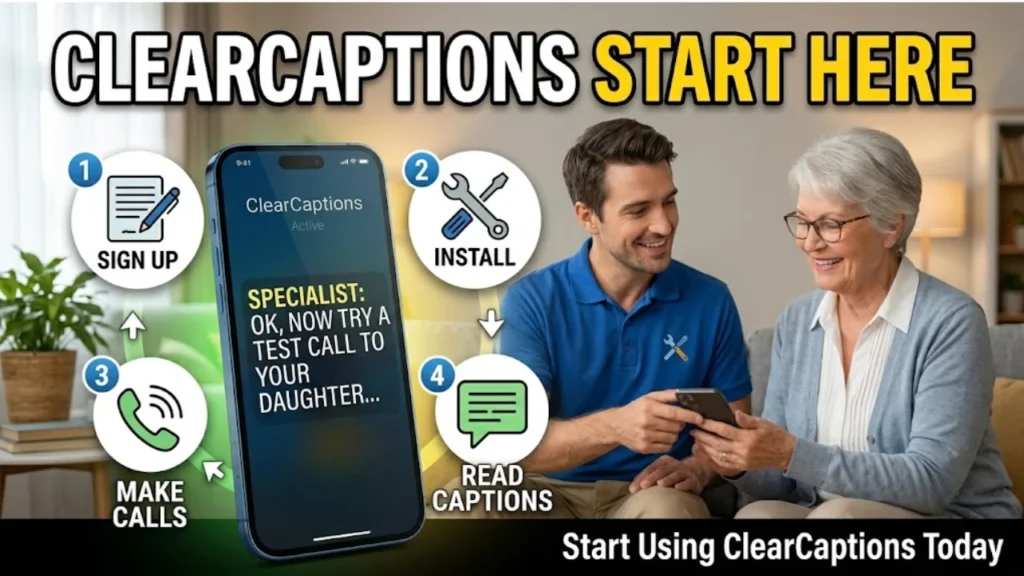
Online signup at clearcaptions.com takes about 10–15 minutes. You’ll complete a Registration Form and a Self-Certification Form confirming your hearing loss. Have your full name, address, phone number, and last four digits of your Social Security Number ready.
Phone signup — call 1-866-209-1412 and a ClearCaptions specialist will walk you through every step.
What to expect during in-home setup:
After you sign up, ClearCaptions schedules a visit from a professional setup specialist. They arrive at your home, configure the phone for your specific needs, connect it to your internet, set your preferred caption font size and display settings, and demonstrate how to make and receive captioned calls. The entire visit is free.
For the mobile app:
Download the ClearCaptions Mobile App from the Apple App Store or Google Play. Complete registration inside the app. You’ll receive a ClearCaptions Voice number with a local area code.
The single most important step after setup:
Register your Registered 911 Location immediately. This ensures emergency calls route correctly to your local emergency response center. Update this address any time you move — even temporarily. You can do this through the app, on the phone itself, or by calling 1-866-868-8695.